Word Document: DOCX, PDF, XLSX
iKame Applications - Begamob GlobalProductivity
4.42.29K Reviews
- Version
- 311702
- Installs
- 50.00M
- Age Rating
- Everyone
Screenshots
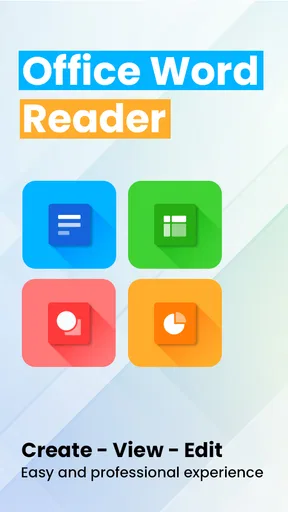
Our Review of Word Document: DOCX, PDF, XLSX
 Analysis by Appyee
When I need to open a document quickly on my phone, I want to spend my time reading or making a small edit, not hunting through a row of separate apps. Word Document: DOCX, PDF, XLSX aims to make that everyday handoff simpler by bringing Word files, PDFs, and spreadsheets into one mobile workspace. In my experience, that broad reach is useful, but it also makes it worth checking what kind of work you expect to do before relying on it for a major project.
Where document work can get stuck
The frustrating part of mobile document handling often happens before editing: a file arrives in a message, sits in a downloads folder, or opens in an app that cannot handle its format well. A combined reader and editor can reduce that app-switching, especially when all you need is to inspect a DOCX, review a PDF, or glance at an XLSX while away from a computer.
The trade-off is that “one app for several formats” does not automatically mean every file behaves exactly as it would in its original desktop program. Complex layouts, unusual fonts, wide spreadsheets, or documents built around specialized formatting can be harder to review on a small screen. I treat a phone edit as a practical correction or review step, rather than assuming it is the best place to rebuild a carefully formatted file.
Setup checks that save time
Before editing an important file, I would first confirm that I have opened the intended copy and know where I will save the result. A document may exist in a local folder as well as a cloud account, and editing one copy while expecting another to change is an easy way to lose track. A simple habit helps: open the file from its current location, make a small test change only when appropriate, then check that the saved version is where you expect it.
For spreadsheets, I also check the sheet name and the visible area before typing. On a phone, it is easy to select the wrong cell or miss a column that sits off-screen. If a sheet matters for work or school, I prefer to inspect the relevant values carefully and leave complex restructuring for a larger display. That is not a flaw unique to this app; it is a sensible limit of editing spreadsheets by touch.
Word Document is a free productivity app from iKame Applications - Begamob Global, with optional in-app purchases ranging from $1.99 to $39.99 per item. It is rated for Everyone and supports Android 8.0 or later. Its 4.6 average across around 334,000 ratings and more than 50 million installs suggest that many people use it, though popularity alone cannot tell you whether its editing depth fits your own files.
Getting Started with Word Document
I was pretty excited to dive into Word Document: DOCX, PDF, XLSX given its ambitious promise to handle three different formats. Installation was a breeze, and upon opening the app, I was greeted with a clean and user-friendly interface. It's designed to be intuitive, so you can jump right into your tasks without a steep learning curve.
Interface and Usability
The app's interface is slick and modern, with a straightforward navigation bar that lets you easily switch between document types. You can create a new DOCX, PDF, or XLSX file with just a few taps. The app supports cloud integration, so linking it to your Google Drive or Dropbox is seamless, allowing you to save and access your documents from anywhere.
One of the standout features is the real-time collaboration tool. Much like Google Docs, you can invite others to view or edit documents with you, which is perfect for team projects or group assignments.
Editing Features
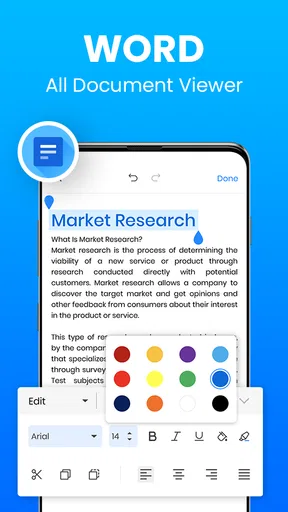
When it comes to editing, the app doesn’t disappoint. The DOCX editor is robust, offering everything from basic formatting options to more advanced features like track changes and comments. This makes it ideal for both casual users and professionals who need detailed document editing capabilities.
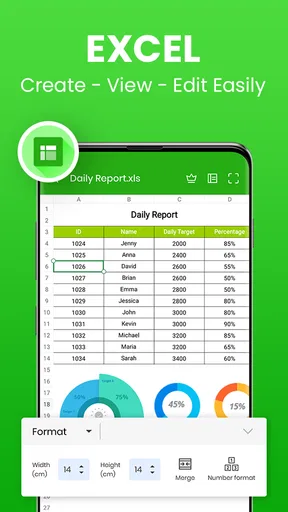
The XLSX editor is equally impressive, with support for complex formulas, pivot tables, and charts. It's like having a portable spreadsheet powerhouse in your pocket. For those who need to work on budgets or data analysis on the fly, this feature is a lifesaver.
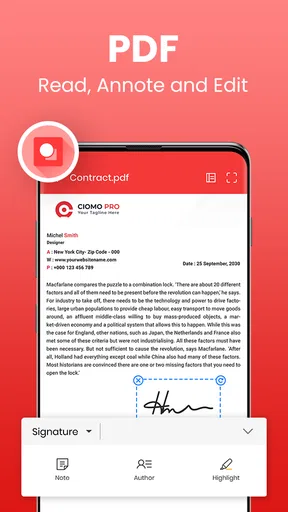
PDF editing is where the app truly shines. You can annotate, highlight, and even sign documents directly from your device. Plus, converting between PDF, DOCX, and XLSX formats is as simple as a tap, making it incredibly versatile for various documentation needs.
Making a mobile workflow dependable
For a realistic day-to-day example, imagine receiving a meeting agenda as a PDF while commuting, then needing to add a note before sharing it with a colleague. The app’s reading and annotation role can help keep that quick task together. If the next file is a spreadsheet, I would use the phone to check a figure or make a modest correction, then reopen the saved copy to verify the change rather than assuming the first screen tells the whole story.
That last check is especially useful when moving between formats. Conversion can be convenient for getting content into an editable form, but it is still wise to review the result for layout changes before sending it on. Tables, page breaks, and alignment carry meaning; a file that opens is not necessarily a file that is ready to distribute. I would keep the original intact until I have inspected the converted copy.
If a file seems to disappear after an edit, I would avoid immediately making the same change again. First revisit the folder or cloud location from which it was opened, then look for the saved version there. If the issue is that a document will not open, checking that it is fully downloaded and trying again is a sensible first step. These basic checks help separate a file-location problem from an editing problem without risking accidental duplicate versions.
How it compares with other document options
Compared with using separate word-processing, spreadsheet, and PDF apps, a single multi-format tool has a clear convenience advantage: fewer handoffs when a task moves from reading to a quick edit. That is most valuable for people who regularly receive mixed file types and do not need every desktop-level control on their phone. The compromise is that a dedicated editor may be a better fit when one format is central to your work and you rely on its specialized tools or precise formatting.
For collaborative writing, a service built around shared documents may feel more natural if the whole team is editing together and needs a consistent live workflow. For careful spreadsheet analysis, a larger screen and a dedicated spreadsheet program are easier to manage than tapping through dense rows on a phone. I see this app as a useful mobile companion for access and routine changes, not an automatic replacement for every specialist tool.
It is also worth considering how often you will use the extra formats. If you mainly read PDFs and rarely touch Word documents or spreadsheets, a simpler reader may suit you better. If you regularly move among all three, keeping them together can be worth the learning and setup time. The best choice depends less on the number of file types listed and more on whether your everyday tasks are short, varied, and mobile.
Performance and Reliability
In terms of performance, the app runs smoothly without any noticeable lag, even when handling large files. I tested it on both Android and iOS devices, and it worked flawlessly across platforms. The app is regularly updated, ensuring any bugs are quickly squashed and new features are frequently introduced.
Security is also a top priority with this app. It offers robust encryption and password protection for sensitive documents, ensuring your data remains private and secure.
When a problem may be outside the editor
When a document refuses to appear or save as expected, it is tempting to blame the editor straight away. In practice, the cause may be the file itself, its location, or the way it was shared. I would check whether the original opens from its source and whether the right account or folder is being used before repeating edits. If only one file causes trouble while others work, that points toward a file-specific issue rather than a reason to change the whole workflow.
There is another practical boundary: phones are not ideal for reviewing every detail of a long contract or a financial sheet. Small text and limited screen space make it easier to overlook a footnote, a far-right column, or a page break. For a quick look, annotation, or minor correction, mobile access is handy; for a final proofread or high-stakes calculation, I would make time to check the file on a larger screen.
The app’s current version is 308504, and it was released on January 27, 2020. Those details are less important to my decision than whether it opens the formats I handle and saves them in a way I can find again. I would try it with a noncritical document first, learn where its controls and saved files are, and only then make it part of a time-sensitive routine.
Final Thoughts
Overall, Word Document: DOCX, PDF, XLSX is a powerful tool for anyone needing to manage multiple document types on their mobile device. It's perfect for students, professionals, or anyone who finds themselves working with documents frequently.
The ability to easily switch between editing documents, spreadsheets, and PDFs without needing multiple apps is a significant convenience. With its blend of functionality, ease of use, and cross-platform support, it’s an app that’s earned a permanent spot on my home screen.
If you’re looking for versatility and reliability in your document management, give Word Document: DOCX, PDF, XLSX a try. You might find yourself wondering how you ever managed without it!
Who will get the most from it
I would recommend it most to someone who handles mixed documents during the day: a student checking a handout and updating a worksheet, a freelancer reviewing a PDF before replying to a client, or a worker who needs to read a Word file between appointments. In each case, the value is not necessarily doing an entire project on a phone; it is having a practical place to open the file and take care of a small task before returning to a computer.
I would be more cautious if your work depends on exact page layout, advanced spreadsheet modeling, or a shared editing process that must stay perfectly synchronized for a group. A dedicated desktop application or a collaboration-first service may be a better primary workspace in those situations. The app makes most sense as a flexible mobile toolbox, especially when convenience matters more than specialist depth.
A sensible way to decide
Before making it part of your regular routine, try one file of each type that you commonly receive. Open a DOCX and check that its paragraphs are readable, inspect a PDF at the zoom level you would normally use, and navigate a spreadsheet with the same kind of rows or columns you handle in real life. This quick trial gives you a more useful answer than judging an editor by its menus alone.
Also decide whether you need to create files from scratch or mostly review documents sent by other people. Those are different jobs: a broad mobile app can be convenient for opening and making small changes, while sustained authoring often benefits from a keyboard, a larger display, and format-specific controls. Knowing which job you expect it to do helps set fair expectations and makes it easier to tell when another tool is the better choice.
My practical verdict is that this is worth considering if you want one accessible place for everyday Word, PDF, and spreadsheet tasks, and you are comfortable checking important edits before sharing them. Its appeal is the ability to move between file types without turning every small errand into an app hunt. Keep a specialist editor in your toolkit for demanding work, and use this one where quick mobile access genuinely saves effort.
Privacy and Permissions
See what permissions an app requests and how it handles your data.
- Identity
- find accounts on the device
- Contacts
- find accounts on the device
- Photos/Media/Files
- read the contents of your USB storage, modify or delete the contents of your USB storage
- Storage
- read the contents of your USB storage, modify or delete the contents of your USB storage
- Camera
- take pictures and videos
- Wi-Fi connection information
- view Wi-Fi connections
- Other
- view network connections, full network access, control Near Field Communication, draw over other apps, control vibration, prevent device from sleeping, install shortcuts, Google Play license check
Verdict
Strengths of Word Document: DOCX, PDF, XLSX
- Compatible with multiple platforms.
- User-friendly interface design.
- Supports cloud integration.
- Wide range of templates available.
- Collaboration features included.
Limitations of Word Document: DOCX, PDF, XLSX
- Requires a subscription for full features.
- Limited offline access options.
- Large file sizes can slow performance.
- Occasional sync issues reported.
- Advanced features may overwhelm beginners.
Other Releases by iKame Applications - Begamob Global
View All
AI Cleaner: Clean up Storage
Tools4.4

TV Remote Control for Smart TV
Tools4.5

OneSearch: DeepSearch Finder
Productivity4.2

Authenticator App - 2FA
Tools4.4
Similar Picks in This Category
View All
Google Calendar
Google LLC4.6

Google Drive
Google LLC4.3

Google Assistant
Google LLC3.9

Microsoft OneDrive
Microsoft Corporation4.6

Samsung Calendar
Samsung Electronics Co., Ltd.4.1

Microsoft OneNote: Save Notes
Microsoft Corporation4.6
Frequently Asked Questions
What file types can this app handle?
The app supports a wide range of file types, including DOCX, PDF, and XLSX. This ensures that users can open, edit, and save documents, spreadsheets, and PDFs seamlessly. Whether you're working on text documents, data sheets, or need to view PDF files, this app has you covered.
Is the app compatible with both Android and iOS devices?
Yes, the app is designed to work on both Android and iOS platforms. This cross-platform compatibility means that users can enjoy a consistent experience regardless of their device. Whether you're using a smartphone or tablet, the app provides full functionality and synchronization across devices.
Does the app require an internet connection to function?
The app offers both online and offline functionality. While an internet connection is necessary for downloading new documents or syncing with cloud services, users can still open, edit, and save files locally on their device without internet access. This is perfect for working on the go.
Are there any in-app purchases or subscription fees?
The app is free to download with optional in-app purchases for advanced features. Users can access basic functionalities without any cost, but premium features, such as advanced editing tools or cloud storage, may require a subscription. Check the app store for detailed pricing information.
How secure is the app for handling sensitive documents?
Security is a top priority for this app. It includes features such as password protection for documents and end-to-end encryption for data transfers. Regular updates ensure that the app adheres to the latest security standards, keeping your documents safe from unauthorized access.
